
Troubleshooting
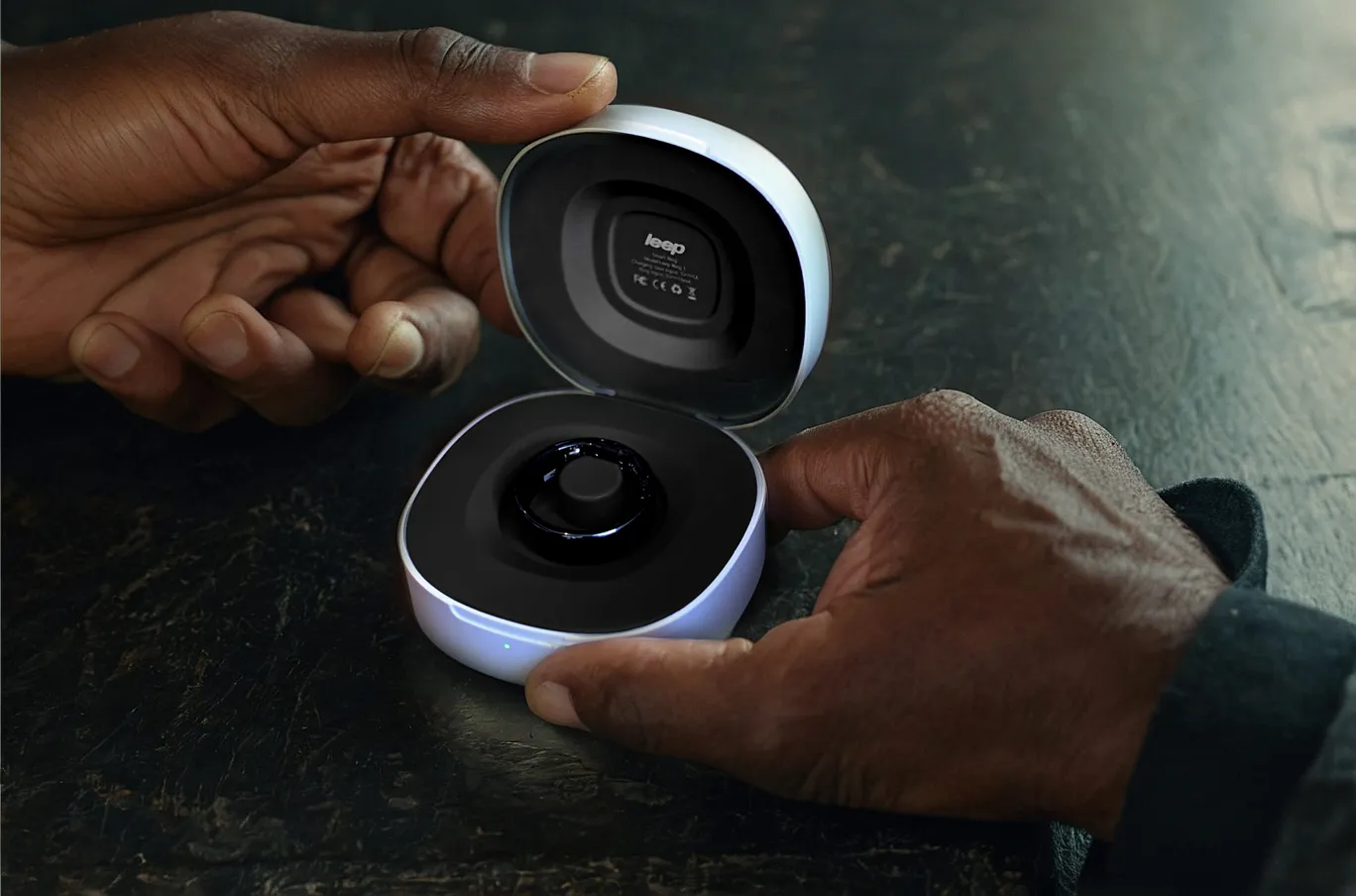
If your Leep Ring isn't charging, first look inside your charging case and check you have removed the small clear plastic ring sitting around the charging pillar. It's transparent and easy to miss, but if it's still in place your Leep Ring simply cannot charge. Lift it off, pop your ring back in, and you should be good to go.
If the plastic ring has already been removed, next check if you have one of the ring protectors fitted. The ring protectors must be removed before charging, as they prevent the magnetic pins from making contact with the ring.
If your Leep Ring is still not charging, please try cleaning the magnetic pins:
1. Wipe the magnetic charging pins on the ring and the charging case with a soft dry cloth.
2. Remove any dust, lint, or debris from both contact points.
3. Check the ring is correctly aligned on the case with the pins making full contact.
4. Look for a slow green blinking light confirming charging has started.
If this does not resolve the issue, try the steps below:
1. Check the Charging Case connection
Ensure the USB-C cable is firmly connected to both the power source and the Charging Case. Try plugging into a different USB port or wall adapter to rule out power source issues. Verify the power outlet is working by testing with another device.
2. Check ring placement
Align the ring properly on the Charging Case with the sensors facing the correct direction. Make sure the ring is seated securely and making full contact with the charging pins. The ring should sit flat and stable on the dock.
3. Try a different cable
If available, try using a different USB-C cable to rule out a faulty cable. Cable damage is a common cause of charging issues.
4. Check for damage
Inspect the Charging Case and ring for any visible damage or warping. Look for any bent or corroded charging pins on either the ring or the dock.
5. Restart the charging process
Remove the ring from the Charging Case for 15 seconds, then place it back in the Charging Case and check if the LED indicator lights up. This simple reset can sometimes resolve temporary connection issues.
6. Check if the ring sensor is blinking
Place the ring in the charging case connected to power. Charge the ring for more than 30 minutes and check if the green sensor light inside the ring is blinking.
If the problem persists, please contact our support team at support@leephealth.com
If your Leep Ring is not measuring any data, please try the following steps:
1. Unpair and re-pair your ring via the Leep app. It will then auto-sync.
2. Close the app completely (swipe up to close), reopen it, and check if data syncs.
3. Log out of your account and log back in, then sync.
4. Check the app is on the latest version.
If data still does not appear, go to App Settings > Your Account and export your data as a CSV file. If the ring is recording correctly, the CSV will contain timestamped measurements. Please send this file to support@leephealth.com and we will investigate further.
Try these steps in order:
- Close the app completely (swipe up to dismiss) and reopen it after 3–5 seconds.
- Toggle Bluetooth off and back on on your phone.
- If it still won't connect, go to Settings > Ring Settings > Unpair Ring, then close the app and re-pair from scratch. This forces a full clock re-sync and resets the Bluetooth connection.
Note: the ring connects at the OS level using Bluetooth Low Energy (BLE), which behaves differently to standard Bluetooth devices and may not appear in your phone's Bluetooth settings menu — this is normal.
If your Leep Ring is not pairing with your smartphone, follow these steps:
1. Make sure the ring is charged.
2. Check your smartphone to ensure Bluetooth is turned on. This should be in your Bluetooth settings.
3. Restart the Leep App and try pairing again through the App.
If you have logged out of the app and back in using a different method (for example, first using your Apple ID button, then later typing your email address manually), the app may have created a second account. The ring is still registered to your original account and the new one cannot claim it.
Log out and log back in using exactly the same method you used when you first set up the app. If you are unsure which method you used, try the Apple, Google or Facebook button first.Also note that the email input field may auto-capitalise the first letter - make sure your email is entered in lower case.
If you are still unable to pair, contact us at support@leephealth.com and we can reassign the ring to your account.
Not necessarily. Some rings have a slightly different charging behaviour depending on the battery cell. The ring's battery management system can take longer to initiate charging when the cell is very low, sometimes up to a couple of minutes, because it is being cautious about how it brings the cell back up from a depleted state. This is the system protecting your battery, not a fault.
Rather than watching for the flashing green light on the ring, try this:
1. Place the ring in the charging case and leave it undisturbed for 90 minutes.
2. Look at the LED on the charging case itself.
3. If the case LED stays solid green, current is passing to the ring and it is charging, even if the ring LED has not yet started flashing.
4. After 90 minutes, open the Leep app, connect to your ring and sync.
5. The battery percentage should have updated to reflect the charge received.
If after 90 minutes the battery shows no change at all, please contact us at support@leephealth.com and we will arrange a replacement straight away.
Tips for best charging results:
1. Clean the magnetic charging pins on both the ring and the case with a soft dry cloth before charging.
2. Remove the silicone protector before placing the ring in the case as it can prevent the pins from making contact.
3. Make sure the ring is correctly seated and the lid can close properly.
4. The charging case does not need to be plugged into the wall to charge the ring, but plugging it in ensures maximum current is available.
If the Charging Case LED isn't illuminating when you place your ring on it:
1. Test the Charging Case without the ring
Connect the Charging Case to power without placing the ring on it. The LED should briefly illuminate to indicate the Charging Case is receiving power. If no light appears, the issue is with the Charging Case or power supply.
2. Check your power source
Try a different wall adapter (use one that provides at least 5V/1A output). Try a different power outlet to rule out outlet issues. You can also try connecting to a computer's USB port as an alternative power source.
3. Inspect the USB-C cable
Check for any visible damage, fraying, or bent connectors on the cable. Try a different USB-C cable if available, as cable failure is common.
4. Clean the Charging Case
Wipe the charging pins with a dry cloth to ensure clean contact. Remove any debris from the charging area that might be preventing proper connection.
5. Test with the ring placed
Place the ring in the Charging Case and ensure proper alignment. The LED should illuminate, indicating normal charging is taking place.
6. Check if the ring sensor is blinking
Place the ring in the charging case connected to power. Charge the ring for more than 30 minutes and check if the green sensor light inside the ring is blinking.
If the LED still doesn't turn on: Your Charging Case may be defective. Please contact our support team for a replacement at support@leephealth.com
First, update the app to the latest version. A background sync bug introduced in late May 2026 was causing excessive battery drain for some users and has since been fixed — most affected users see significant improvement after updating.
If battery life is still poor after updating: try cleaning the magnetic charging pins with a soft, dry cloth. Then calibrate the battery by giving it a full, uninterrupted charge of at least 3 hours and resuming normal use.
If neither resolves it, contact support@leephealth.com and we will arrange a replacement.
If your ring is taking much longer than usual to charge:
1. Use the correct power adapter
Use a wall adapter that provides at least 5V/1A output. Avoid low-power USB ports on computers or older adapters. The Leep Ring should fully charge in approximately 60-90 minutes.
2. Check for poor contact
Ensure the ring is properly seated on the Charging Case. Clean both the ring's charging contacts and the dock's pins with a soft, dry cloth to ensure optimal connection.
3. Avoid charging in extreme temperatures
Charging is slowest in very cold or very hot environments. Charge your ring at room temperature (15-25°C / 59-77°F) for optimal charging speed.
4. Try a different power source
Switch from computer USB to wall adapter, or vice versa. Try a different outlet to rule out power delivery issues.
If charging remains abnormally slow (over 2 hours for full charge): Contact Leep Support at support@leephealth.com as this may indicate a battery or hardware issue.
A slight warmth during charging is normal, but excessive heat is not. Here's what to do:
1. Immediate action if ring is very hot
Remove the ring from the Charging Case immediately. Do not wear the ring until it has cooled to room temperature. Let it cool down for at least 30 minutes before attempting to charge again.
2. Check your power source
Ensure you're using an appropriate power adapter (5V/1A). Avoid fast-charging adapters meant for phones (9V or higher).Try a different, lower-power USB port or adapter.
3. Check environmental factors
Don't charge in direct sunlight or near heat sources. Ensure the charging area has adequate ventilation. Avoid charging on soft surfaces like beds or couches that can trap heat.
4. Inspect for damage
Check if the ring or Charging Case shows any signs of damage, warping, or discoloration. Do not use if you notice any physical deformities.
5. Monitor the temperature
Slight warmth (warm to touch but comfortable) is normal. If the ring is too hot to touch comfortably, this is not normal and requires immediate attention.
What's normal:
· The ring may feel warm (30-40°C / 86-104°F) during charging
· Warmth should dissipate within 5-10 minutes after removing from Charging Case
What's NOT normal:
· Ring is too hot to hold or touch
· Ring remains hot for extended periods after charging
· Visible swelling or deformation of the ring
If your ring gets excessively hot: Stop using it immediately and contact Leep Support at support@leephealth.com. Do not attempt to charge it again. This may be a battery safety issue that requires replacement.
If your ring frequently loses connection to your phone:
1. Check Bluetooth basics
Ensure Bluetooth is enabled on your phone.Keep your phone and ring within 10 meters (33 feet) of each other. Avoid obstacles like walls or large metal objects between devices.
2. Minimize Bluetooth interference
Move away from other Bluetooth devices (headphones, speakers, smartwatches). Turn off Wi-Fi temporarily to test if interference is the cause. Avoid areas with many active Bluetooth devices like crowded offices or gyms.
3. Update the Leep App
Ensure you have the latest version from the App Store. Check for ring firmware updates in the Leep App Settings. Outdated software can cause connection instability.
4. Restart both devices
Restart your smartphone completely. Place your ring in the Charging Case for 10 seconds, then remove it to perform a soft reset.
5. Re-pair the ring (if disconnections persist)
In your phone's Bluetooth settings, "Forget" the Leep Ring. Open the Leep App and follow the pairing instructions. Keep the ring in its Charging Case during initial pairing.
Tip: Keep the Leep App open in the background or open it once daily to maintain a strong connection and ensure data syncs properly.
If disconnections continue: Contact Leep Support at support@leephealth.com as there may be a hardware issue with your ring's Bluetooth module.
To connect your Leep Ring to a new phone:
1. Back up your data first (on old phone if still available)
Open Leep App on your old phone and go to Your Account > Backup your data. Wait for confirmation that backup is complete. This uploads everything to Leep cloud.
2. Unpair from old phone (if accessible)
Go to your old phone's Bluetooth settings, find "Leep Ring" and select "Forget" or "Unpair". In the Leep App, go to Settings > Unpair Ring.
3. Install Leep App on new phone
Download the latest version from App Store. Sign in with your existing Leep account (do NOT create a new account). Your cloud-backed data should sync automatically.
4. Put ring in pairing mode
Place your ring in its Charging Case. Keep it in the Charging Case during the pairing process.
5. Pair to new phone
Open the Leep App on your new phone and tap "Add Ring" or follow the on-screen pairing instructions. Enable all requested permissions (Bluetooth, Location, Notifications). The app should detect your ring automatically.
6. If pairing fails
Perform a soft reset by removing ring from Charging Case, waiting 15 seconds, then replacing it. Ensure Bluetooth is enabled on new phone. Try restarting your new phone. Move closer to the ring (within 1 meter during pairing).
7. Verify connection
Once paired, check that data begins syncing. Wait 10-15 minutes for the ring to sync historical data from internal memory.
Important: Your Leep Ring can only be connected to one phone at a time. Make sure it's fully unpaired from the previous device.
If pairing still fails: You may need to perform a factory reset on the ring (see factory reset section). If the problem persists, please contact our support team at support@leephealth.com
If your ring isn't appearing in Bluetooth settings:
1. Don't pair through phone settings
The Leep Ring should NOT be manually paired through your phone's Bluetooth settings. Always pair through the Leep App, which handles the connection automatically.
2. Ensure ring has power
Place the ring in its Charging Case to ensure it's not completely depleted. A ring with 0% battery won't broadcast Bluetooth signal. Charge for at least 10-15 minutes before attempting to pair.
3. Put ring in pairing mode
Place the ring in its Charging Case. Keep it in the Charging Case during the initial pairing process. The charging LED should be visible.
4. Use the Leep App to pair
Open the Leep App and follow the initial setup wizard. The app will automatically scan for your ring. Keep your phone within 1 meter of the ring during pairing.
5. Troubleshoot Bluetooth
Turn Bluetooth off and back on. Restart your phone. Forget any old Leep Ring entries from Bluetooth settings.
Why you might not see it: The Leep Ring uses Bluetooth Low Energy (BLE) and may not appear as a standard Bluetooth device in your phone's settings. The Leep App manages the connection.
If the app still can't find your ring: Try a factory reset on the ring (see factory reset section). If the problem persists, please contact our support team at support@leephealth.com
If your sleep data isn't showing up or seems incomplete:
1. Check if ring was worn properly
Ensure you wore the ring throughout the entire night. The ring should fit snugly (not loose) for accurate sensor readings. Sensors must maintain contact with your skin.
2. Verify ring had sufficient battery
Check if your ring's battery was above 20% at bedtime. A low battery may cause the ring to stop recording data partway through the night.
3. Wait for processing
Sleep data may take 10-30 minutes after waking to fully process. Open the Leep App to trigger data sync.
4. Check for data gaps
If you removed the ring during the night (e.g., to charge), this will create gaps. Brief removals may result in incomplete sleep stages.
5. Ensure app is updated
Update to the latest version of the Leep App. Check for ring firmware updates in Settings
Calibration note: For the first 7-14 days, your ring is learning your patterns. Sleep data may be less accurate or incomplete during this period.
If sleep data is still missing: The data may not have been recorded (ring wasn't worn, battery died, or loose fit). Check if any data appears under Activity or Balance. Contact Leep Support at support@leephealth.com if this is a recurring issue.
The Leep Ring samples heart rate every 10 minutes during background monitoring. The reading shown in the app is the most recent sample, not a live real-time reading. If you check the app immediately after physical activity, the reading may reflect your heart rate from up to 10 minutes earlier.
Our static heart rate accuracy is 97% within plus or minus 3 BPM, validated against the Polar H10 chest strap ECG.
If your reading appears significantly different from expected over multiple readings, check the following:
• Ensure the ring is seated correctly on your finger with the sensor bumps making full contact with your skin.
• Clean the sensor area on the inside of the ring with a soft dry cloth.
• Make sure the ring is not too loose, as poor skin contact is the most common cause of inaccurate readings.
If data isn't appearing after syncing:
1. Verify ring was worn
Ensure you wore the ring during the period you're expecting data. The ring must be on your finger to collect data, not just nearby.
2. Check battery level
If battery dropped to 0%, data recording stops. Charge your ring and check if older data syncs once powered.
3. Check ring connection
Ensure ring is connected via Bluetooth. If disconnected, bring ring closer to phone. Restart Bluetooth on your phone if needed.
4. Restart both devices
Force close the Leep App. Restart your phone. Place ring on Charging Case for 10 seconds, then remove (soft reset). Reopen app and attempt sync.
Data collection note: The ring continuously collects data when worn, even without phone connection. Data is stored in the ring's internal memory and syncs when you next connect.
If no data appears after all steps: There may be a hardware issue with your ring's sensors. Contact Leep Support at support@leephealth.com for diagnosis.
If data is being collected but not appearing in the app:
1. Ensure stable Bluetooth connection
Check that ring shows as "Connected" in the app. Keep phone and ring within 10 meters during sync. Ensure Bluetooth is enabled on your phone.
2. Open the app to trigger sync
The Leep Ring stores data internally and uploads when the app is opened. Open the app and wait 2-3 minutes for sync to complete. You'll see a sync indicator.
3. Check internet connection
Ensure your phone has active Wi-Fi or cellular data. Cloud backup requires internet connection. Local sync works via Bluetooth only.
4. Reinstall the app (last resort)
First go to Your Account and back up your data. Uninstall the Leep App. Reinstall from App Store. Sign back in to restore cloud data.
Sync frequency: Data typically syncs when you open the app. For best results, open the app at least once daily.
If data still won't upload: Contact Leep Support at support@leephealth.com with details about when the issue started and your app version.
This can happen when the ring's internal clock and your phone's clock become out of sync. Common causes include:
• Daylight saving time changes (clocks going forward or back)
• Travelling across time zones
• First-time sync after wearing the ring without connecting to the app
Fix:
Unpair and re-pair your ring via the Leep app. This forces the ring and phone clocks to re-sync. Go to Settings > Ring Settings > Unpair Ring, then re-pair following the on-screen instructions. Your data should update correctly once re-paired.
If you wore your ring for an extended period before first syncing to the app, please be aware that historical data from before the first sync may show incorrect time stamps. Data from the point of first sync onwards will be accurate.
If you're seeing gaps in your heart rate data:
1. Check ring fit
The most common cause of gaps is loose ring fit. The ring should be snug but comfortable. Sensors must maintain skin contact for continuous readings.
2. Check which finger you're wearing it on
Index, middle or ring finger typically provide best readings. Avoid pinky finger which has poorest circulation. Try switching to a different finger.
3. Verify you wore the ring continuously
Gaps appear when ring is removed, even briefly. If you took the ring off to charge, this is normal.
4. Check battery level during gap period
Low battery (below 10%) may cause sensors to pause. Verify battery was adequate during the missing data period.
5. Consider activity during gaps
Intense hand movement can cause temporary reading gaps. Very cold hands reduce circulation and sensor accuracy. Swimming or water activities may affect readings.
6. Check for sensor obstructions
Clean the inside of your ring (sensors) with a soft, dry cloth. Remove any lotions, oils, or residue from your finger. Ensure sensors are not scratched or damaged.
Understanding gaps:
· Short gaps (5-15 minutes) are usually caused by movement or temporary loss of sensor contact
· Long gaps (hours) are usually caused by removing the ring, low battery, or very loose fit
· Night time gaps may indicate ring is too loose during sleep
If gaps persist despite proper fit: Contact Leep Support a support@leephealth.com as this may indicate a sensor hardware issue.
If your app is stuck showing outdated information:
1. Check ring connection
Ensure ring shows as "Connected" in the app. If not connected, bring ring closer to phone. Enable Bluetooth if disabled.
2. Restart the app
Force close the Leep App completely. Reopen it after 10 seconds. Check if new data appears.
3. Restart Bluetooth connection
Turn Bluetooth off and back on. Reopen the Leep App. Wait for ring to reconnect.
4. Check for app updates
Update to the latest version from App Store. Outdated apps may have sync bugs.
5. Check date and time settings
Ensure your phone's date and time are set to automatic. Incorrect time settings can cause data display issues.
6. Reinstall app (if nothing else works)
First go to Your Account and back up your data. Uninstall and reinstall Leep App. Sign in to restore cloud data.
If app continues showing old data: There may be a cloud sync issue. Contact Leep Support at support@leephealth.com for account-level troubleshooting.
A loose-fitting ring will result in inaccurate data. Here's what to do:
1. Why fit matters
Sensors must maintain constant contact with skin. A loose ring causes gaps in heart rate, SpO2, and temperature data. Movement and activity data may also be affected.
2. Check if you need a smaller size
Finger size can fluctuate throughout the day (smaller in morning, larger at night). If the ring spins easily or slides off without resistance, it's too loose. Contact Leep Support at support@leephealth.com about sizing options or ring sizers.
3. Choose the right finger
Index finger typically provides the most stable fit. Middle and ring fingers are also good. Avoid pinky (usually too small) or thumb (usually too large). Non-dominant hand often provides better fit.
4. Temporary solutions
Try wearing on a different finger for better fit. Switch hands as non-dominant often has slightly different sizing.
5. Be consistent
Consistency is key - try to keep it on the same finger. Don't switch fingers frequently, as this affects data calibration.
Signs your ring is too loose:
· Ring spins easily around your finger
· Ring slides off without resistance
· Frequent data gaps in heart rate graphs
· Inaccurate sleep detection
Signs your ring is properly fitted:
· Snug but comfortable (slight resistance when removing)
· Doesn't spin freely around your finger
· Can stay on through handwashing and normal activities
· No discomfort after hours of wear
If you need a different size: Contact Leep Support at support@leephealth.com about exchange options.
If your ring has fully drained to 0% it may not respond immediately when placed back on charge. Follow these steps:
1. Clean the magnetic charging pins on both the ring and the charging case using a soft dry cloth. Remove any dust or debris from both contact points.
2. Make sure the charging case itself is fully charged before attempting to charge the ring.
3. Place the ring back in the case, ensuring the pins are properly aligned and the ring is seated flat.
4. Look for a slow green blinking light on the ring. This confirms it is charging correctly. It may take a few minutes to appear if the battery is fully depleted.
5. Leave the ring to charge for at least 60-90 minutes before attempting to reconnect via the app.
To avoid this in future, try to keep your ring charged above 20%. We have added low battery and sync reminder notifications to the app to help with this.
If no lights appear after 30 minutes and you have followed all steps above, contact us at support@leephealth.com and we will arrange a replacement.
This is completely normal! Here's why:
1. Calibration period is essential
Your Leep Ring needs 7-14 days to establish your personal baseline. During this time, it learns your unique patterns for resting heart rate, heart rate variability (HRV), body temperature variations, sleep patterns and stages, and activity levels.
2. What to expect during calibration
Days 1-3 bring basic data collection with limited insights. Days 4-7 show basic scores appearing, but they may fluctuate. Days 8-14 produce more stable and accurate scores. Days 15-30 provide fully personalized insights and recommendations.
3. Why it takes time
Everyone's physiology is different. The ring needs to distinguish your "normal" from unusual patterns. Sleep stages, recovery, and readiness require baseline comparisons.
4. How to help the calibration process
Wear your ring 24/7 except when charging. Maintain consistent routine during first 2 weeks. Wear on the same finger throughout calibration. Ensure proper fit so sensors collect accurate data. Open the app daily to sync data.
5. What you'll see during calibration
You may see "Establishing baseline" or "Not enough data" messages. Incomplete scores or dashes (-) may appear instead of numbers. Less detailed insights and recommendations are normal. This is temporary and expected.
6. After calibration completes
You'll receive full Sleep, Activity and Balance scores. Personalized recommendations become available. Trend analysis and patterns emerge. More accurate detection of unusual readings begins.
Be patient: The calibration period ensures your Leep Ring provides accurate, personalized insights rather than generic estimates. The wait is worth it!
Tip: Don't make major lifestyle changes during calibration (like starting intense training or drastically changing sleep schedule) as this can extend the calibration period.
A factory reset clears all data from your ring and returns it to its original state. Only do this if troubleshooting hasn't resolved your issue.
WARNING: This will delete all unsynced data stored on your ring. Back up your data first!
Before you reset:
Open Leep App and go to Your Account and back up your data. Wait for confirmation that backup is complete. Ensure ring has at least 30% battery and charge your ring if needed.
Factory reset through the app
Open the Leep App and go to Settings >Ring Settings and tap "Factory Reset". Confirm the action when prompted. Place ring on Charging Case as instructed. Wait for LED indicator toconfirm reset (may show specific color sequence). Ring will enter pairing mode automatically.
After factory reset:
Ring will be in pairing mode (unpaired from all devices). Open Leep App and follow pairing instructions. Sign in with your Leep account. Cloud-backed data will sync to your account. Ring will need to recalibrate (7-14 days for full baseline).
What gets erased:
· All data stored in ring's internal memory
· Bluetooth pairing information
· Ring settings and preferences
What is NOT erased:
· Data previously synced to cloud (accessible after re-pairing)
· Your Leep account and historical data
· App settings on your phone
When to perform a factory reset:
· Persistent connection issues that can't be resolved
· Switching to a new phone and re-pairing fails
· Ring is unresponsive or behaving erratically
· Preparing to give/sell ring to another user
Note: After reset, your ring will need to recalibrate to your body (7-14 days), so avoid resetting unless necessary.
Backing up your data ensures you don't lose your health information. Here's how:
Automatic cloud backup:
You can back up your data to the cloud if you enable it. This will then happen each time you open the app and sync. It requires internet connection (Wi-Fi or cellular data). To verify automatic backup is enabled, open Leep App and go to Settings > Your Account > Backup your data.
When to back up:
Back up before switching to a new phone, before uninstalling/reinstalling the app, before factory resetting your ring, and if you haven't opened app in several days.
What gets backed up:
· All health metrics (sleep, activity, heart rate, etc.)
· Historical trends and baselines
· Personal settings and preferences
· Ring calibration data
· Daily scores and insights
What is NOT backed up:
· Data still stored on ring (must sync first)
· App interface settings
· Downloaded content
Backup and internet connection:
Backup requires active internet connection. If offline, data is queued and backs up when online. Large data uploads may take 1-2 minutes.
Restoring from backup:
Your data automatically restores when you sign in on a new phone, reinstall the app, or reset and re-pair your ring.
Multiple device access:
You can access your data from multiple devices. Sign in with the same account on any device. All devices show the same cloud-synced data.
Data security:
All data is encrypted during transmission. Data is stored securely on cloud servers. It's only accessible with your account credentials.
Best practice: Open the app daily to ensure continuous automatic backups. Always manually back up before making major changes (new phone, factory reset, etc.).
Transferring your Leep Ring data to a new phone is straightforward if you follow these steps:
Step 1: Prepare on old phone (if still accessible)
Open Leep App on old phone and go to Settings > Your Account and back up your data. Then unpair the ring (recommended) by going to Settings > Ring Settings > Unpair Ring, or in phone Bluetooth settings, forget "Leep Ring".
Step 2: Set up new phone
Download latest version from App Store. Do NOT create a new account. Sign in with the same email/password from your old phone. Your cloud data will begin downloading automatically. Wait for data restore as historical data syncs from cloud. This may take 2-5 minutes depending on data volume and requires an active internet connection.
Step 3: Pair ring to new phone
Enable Bluetooth on new phone. Grant all permissions when prompted (Bluetooth, Location, Notifications). Put ring in pairing mode by placing it on Charging Case. If coming from old phone, ring should auto-enter pairing mode. If not, remove and replace on Charging Case several times. Then pair through app by opening Leep App on new phone and following setup instructions. App will scan for your ring. Keep phone within 1 meter of ring during pairing. Complete pairing by following on-screen instructions and waiting for "Ring connected" confirmation. Ring may sync additional data from internal memory.
Step 4: Verify everything transferred
Check historical data by reviewing past days/weeks to ensure data is present. Trends, scores, and insights should all be visible. Check ring connection by ensuring ring shows "Connected" on ring settings. Wait 5-10 minutes for initial sync. Test new data collection by wearing ring and waiting a few hours, then checking that new data is being collected and synced.
What transfers automatically:
· All historical health data (sleep, activity, heart rate, etc.)
· Personal baselines and calibration data
· Trends and insights
· Account settings and preferences
What does NOT transfer:
· App notification settings (must reconfigure)
· Downloaded content
· Local app cache
If you don't have access to old phone:
Don't worry! As long as you previously synced data, simply install app on new phone, sign in with existing account, and all cloud-backed data appears automatically. Then pair the ring following steps above.
Common issues and solutions:
If ring won't pair to new phone, factory reset ring then pair (Settings > Ring Settings > Factory Reset). If historical data is missing, ensure you signed in (not created new account) and check Settings > Your Account for correct email. If you see "Ring already paired" error, unpair from old phone's Bluetooth settings, or factory reset ring.
Best practice: Always backup data before switching phones. The backup ensures no data loss even if something goes wrong during transfer.
If data doesn't transfer: Contact Leep Support at support@leephealth.com with your account email. They can verify your cloud backup and help restore data.
When contacting support please provide the following information:
· Ring model and serial number (Settings > Ring Settings)
· App version (Settings > Ring Settings (Firmware))
· Phone model and OS version
· Detailed description of the issue
· Troubleshooting steps you've already tried
Warranty information:
For warranty information please see the user manual or the terms and conditions on our website. Keep your proof of purchase for any warranty claims.
